
TL;DR
Samsung buries advanced Wi‑Fi tools inside a hidden Connectivity Labs menu on Galaxy phones running One UI 6 or later. Activating it unlocks network inspection, low‑latency protocols, smarter handovers and Wi‑Fi 7 controls that can improve real‑world connectivity when supported by your router and carrier.
What happened
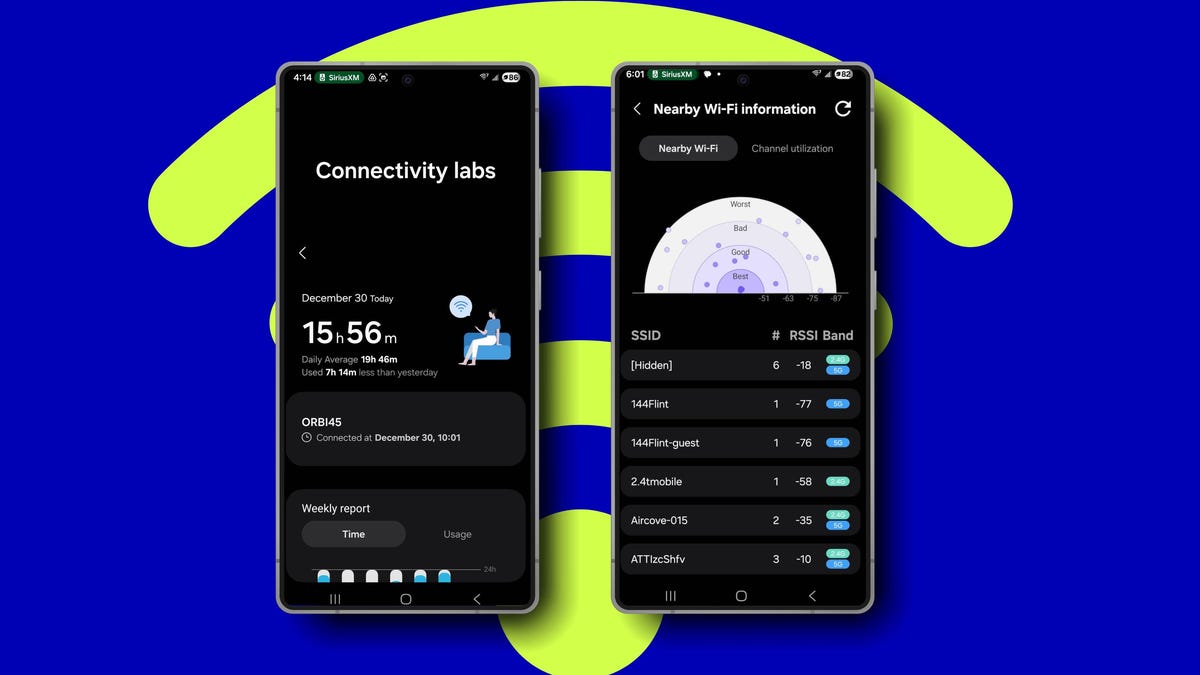
A ZDNET reporter walked through Samsung's concealed Connectivity Labs menu and described practical settings that improved day‑to‑day wireless performance on his Galaxy S25 Plus. To reach the menu you open Settings → Connections → Wi‑Fi → the three‑dot menu → Intelligent Wi‑Fi, then tap the Intelligent Wi‑Fi software version seven times to reveal Connectivity Labs. The reporter used built‑in tools such as a Home Wi‑Fi inspection that maps signal drop‑offs while you walk through a house, an Auto reconnect to carrier Wi‑Fi option, and a Show network quality info view that ranks nearby access points and suggests best channels. He also enabled L4S (a low‑latency protocol) and a Wi‑Fi 7 Mode where supported, and tested quicker switching to mobile data plus an Intelligent Wi‑Fi Handover to reduce freezes when Wi‑Fi performance falters. Some features require compatible routers or carrier support to deliver benefits.
Why it matters
- Built‑in diagnostics can replace third‑party apps for mapping home Wi‑Fi coverage.
- Low‑latency and Wi‑Fi 7 options can materially improve real‑time applications—if network gear and ISPs support them.
- Automatic carrier hotspot reconnect and faster mobile handover settings help avoid slow or unreliable connections in public spaces.
- Network quality labels and channel recommendations make Wi‑Fi configuration and troubleshooting more accessible to nonexpert users.
Key facts
- Connectivity Labs is accessed from Settings → Connections → Wi‑Fi → Intelligent Wi‑Fi; tap the Intelligent Wi‑Fi software version seven times to enable it.
- Requires a Samsung phone running One UI 6 or later — Galaxy S20 series and newer models are supported.
- Home Wi‑Fi inspection walks you through the home and visualizes signal strength drops and spikes for placement decisions.
- Auto reconnect to carrier Wi‑Fi lets the phone automatically join participating carrier hotspot networks to offload mobile data.
- L4S (Low Latency, Low Loss, Scalable Throughput) is available in the menu; it can greatly reduce latency but needs router and network support.
- Wi‑Fi 7 Mode can be enabled to take advantage of Wi‑Fi 7 speeds when the access point supports the standard.
- Switch to mobile data faster and Intelligent Wi‑Fi Handover help the phone move traffic to cellular when Wi‑Fi quality degrades.
- Show network quality info ranks nearby access points (Best, Good, Bad, Worst) and can display channel utilization and best channel recommendations.
- The reporter tested Wi‑Fi 7 on an Orbi 970 mesh with an AT&T 1 Gbps fiber connection and observed a roughly 1,034 Mbps Ookla Speedtest result on the device.
What to watch next
- Whether more consumer routers and gateway devices add L4S support — currently only a limited set of gear supports it (confirmed in the source).
- Your ISP or cable gateway may need to enable L4S or low‑latency DOCSIS features before you see benefits (confirmed in the source).
- Broader adoption of Wi‑Fi 7 in routers and mesh systems to make Wi‑Fi 7 Mode widely useful (not confirmed in the source).
- Whether Samsung expands or relocates Connectivity Labs access in future One UI releases (not confirmed in the source).
Quick glossary
- Connectivity Labs: A hidden menu inside Samsung's Intelligent Wi‑Fi settings that exposes advanced Wi‑Fi tools and diagnostic options for Galaxy phones.
- L4S: Short for Low Latency, Low Loss, Scalable Throughput; a network protocol aimed at keeping latency low and stable, especially under congestion.
- Wi‑Fi 7: The latest Wi‑Fi standard (802.11be) offering higher bandwidth, multiple bands, and new features to improve throughput and latency where supported.
- Intelligent Wi‑Fi Handover: A Samsung feature that monitors Wi‑Fi quality and hands traffic to cellular to reduce freezes or lag when Wi‑Fi performance deteriorates.
Reader FAQ
How do I enable Connectivity Labs on my Samsung phone?
Open Settings → Connections → Wi‑Fi → the three‑dot menu → Intelligent Wi‑Fi, then tap the Intelligent Wi‑Fi software version seven times to reveal Connectivity Labs.
Which Samsung phones support these features?
The features require One UI 6 or later; Samsung Galaxy S20 series and newer models are cited as compatible.
Will L4S and Wi‑Fi 7 work on any router?
No — both L4S and Wi‑Fi 7 require support in your router or gateway and in some cases ISP activation; without that support the phone cannot use those capabilities.
Will enabling these options harm battery life?
not confirmed in the source
Why you can trust ZDNET: Our process Home Tech Smartphones How I use Samsung's secret Wi-Fi menu to seriously improve my connectivity Here's how to find Connectivity labs on your…
Sources
- I use Samsung's Wi-Fi menu to seriously improve my connectivity
- Your Samsung phone has a secret Wi-Fi menu that's highly …
- A hidden Samsung Galaxy menu that makes weak Wi-Fi …
- Connectivity Labs
Related posts
- Leak suggests OnePlus 16 will adopt a 200MP main sensor in 2026
- How to get the most from Apple Health: top tips for 2026 tracking
- France to ban social media for under-15s, aims for September 2026 start