
TL;DR
A recent Play Store session revealed four practical features that improve control and convenience: per-app auto-update toggles, a Download manager shortcut, an Auto-open when ready option, and in-place changelog viewing. These tools aim to reduce interruptions, surface recent installs, and let users limit risky updates without changing global settings.
What happened
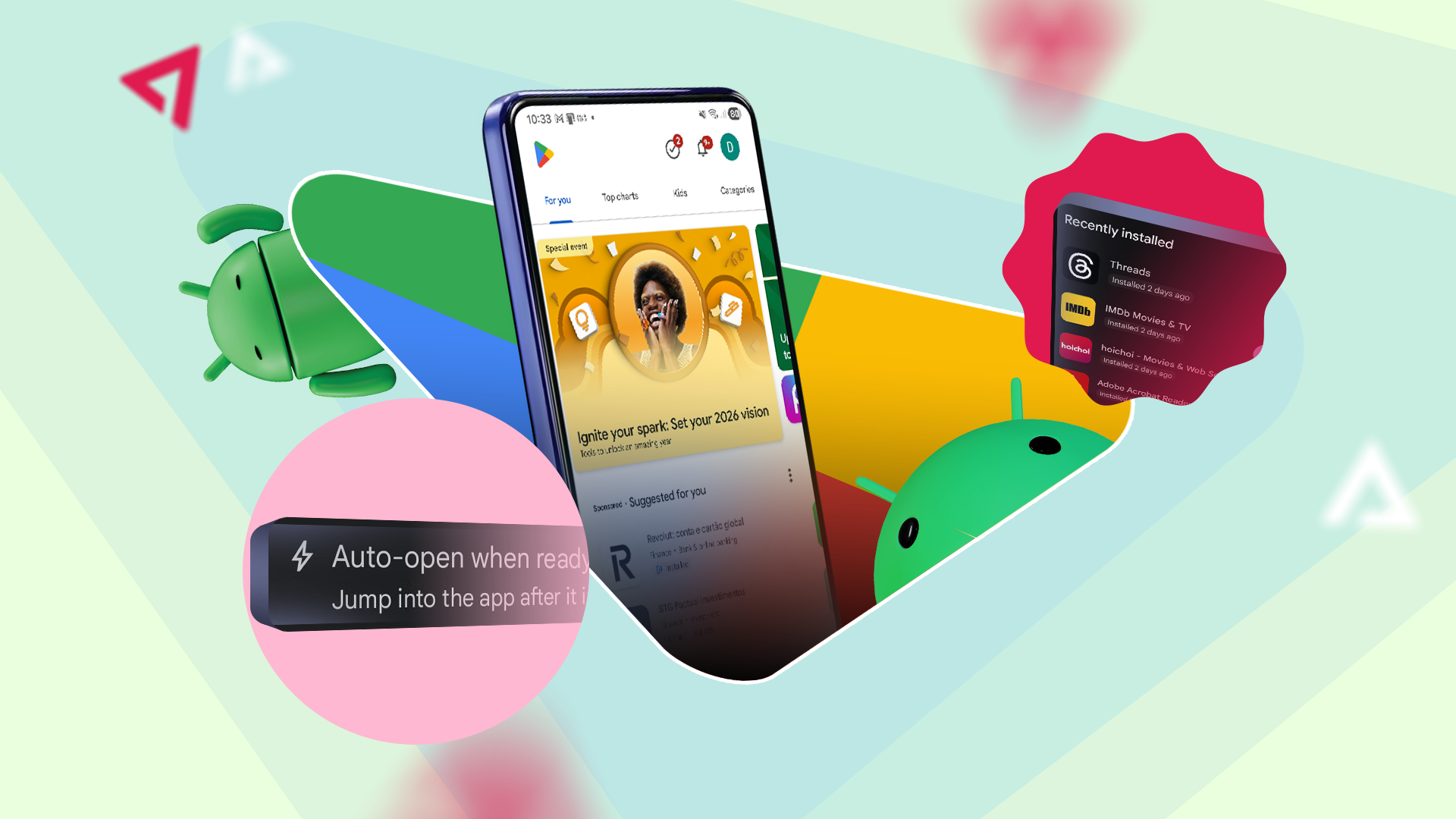
While installing an app recently, the author discovered several Play Store interface changes and new controls that streamline app management. Per-app auto-update can be enabled from the three-dot menu after installation, creating an exception to a global “don’t auto-update” preference and persisting until changed; reinstalling an app will cause it to auto-update unless that box is unchecked. A Download manager shortcut — a circular icon with a check mark located at the top left near the notification icon on Apps & Games pages — lists recent installs, their ages, and current downloads, and lets users open apps directly. The Auto-open when ready toggle appears on an app’s download page and, when enabled, triggers a countdown notification offering Cancel or Open before launching the app. Finally, changelogs for installed versions are accessible from Profile → Manage apps and device → Manage tab by tapping the down arrow next to an app, with a Recently updated filter to show recent changes.
Why it matters
- Gives users fine-grained control over updates so critical apps aren’t unexpectedly changed or broken.
- Makes it faster to check and launch newly installed apps via a dedicated Download manager.
- Reduces interruptions by letting users opt into automatic app opening and cancel it via a countdown.
- Helps evaluate what changed in installed apps without navigating to each app’s store page.
Key facts
- Per-app auto-update is toggled from the three-dot menu after an app installs and creates an exception to global auto-update settings.
- If you uninstall and reinstall an app, it will auto-update by default unless you uncheck the per-app auto-update box.
- Download manager shortcut appears only on Apps & Games pages and shows recent installs and active downloads; its icon is a circle with a check mark that changes to a download icon when in progress.
- Auto-open when ready is an opt-in toggle shown beneath the app title on the download page and triggers a notification with a countdown and Cancel/Open options.
- Changelogs for the version currently on your device are available from Profile → Manage apps and device → Manage tab by tapping the down arrow next to an app.
- Use the Recently updated filter in Manage to see changelogs for recently updated apps.
- Play Store still offers broader features such as Play Protect and Network preferences for download/update behavior.
What to watch next
- Whether these controls roll out consistently to all users and regions — not confirmed in the source
- If Google expands the Download manager shortcut to other Play Store sections beyond Apps & Games — not confirmed in the source
- Any future changes to default auto-update behavior or how per-app exceptions are handled — not confirmed in the source
Quick glossary
- Per-app auto-update: A setting that lets you enable or disable automatic updates for an individual app, independent of global update preferences.
- Download manager: A Play Store feature that lists recent app installs and active downloads and provides quick access to those apps.
- Auto-open when ready: A per-app option that automatically launches an app after installation, typically showing a countdown notification with a Cancel or Open choice.
- Changelog: A record of changes, fixes, and new features included in a particular app version.
- Play Protect: Google’s app-scanning and threat-detection service that checks apps for potentially harmful behavior.
Reader FAQ
How do I enable per-app auto-update?
After installation, open the three-dot menu for the app and select the Enable auto-update checkbox.
Where is the Download manager located?
On Apps & Games pages the shortcut appears at the top left near the notification icon as a circle with a check mark; it shows recent installs and active downloads.
What does Auto-open when ready do?
When toggled for an app on its download page, it will open the app after installation but first shows a notification with a countdown and Cancel/Open options.
How can I view an app’s changelog without visiting its store page?
Go to your profile → Manage apps and device → Manage tab, then tap the down arrow next to an installed app to reveal the changelog for the installed version.
Are these features enabled for all users by default?
not confirmed in the source
Nobody told me about these 4 Google Play features — now they're non-negotiable Credit: Lucas Gouveia / Android Police By Rahul Naskar Published 4 minutes ago Rahul Naskar has years of…
Sources
- Nobody told me about these 4 Google Play features — now they're non-negotiable
- Are you getting paid in the Google Play Store settlement? …
- Attorneys General investigate buy now, pay later lenders …
- Reaffirming choice and openness on Android and Google …
Related posts
- Punkt’s MC03: German-assembled privacy smartphone arriving in the US
- Leaked preview shows Samsung integrating Perplexity into Bixby on Galaxy S26
- How to Track Steps, Sleep and Fitness Progress With Just Your Phone