
TL;DR
When activating a new smartphone, resist the urge to restore every app and default permission you had before. The piece advises doing a clean install, reviewing app permissions, and rethinking your home screen to reduce clutter and noisy notifications.
What happened
A recent how-to from Android Police urges people to take more care during the initial setup of a new phone instead of rushing through a restore. The author describes a tendency to copy every app from an old device — including ones tied to products no longer owned — and recommends treating first-time setup as an opportunity to pare down to essentials. Practical steps include performing a clean install rather than mass-restoring apps, deciding permissions (especially notification rights) app-by-app, and reorganizing the home screen with folders, widgets or a different launcher. The writer tested this approach on a Motorola G Play 2026 and reported fewer interruptions and more meaningful alerts after limiting permissions and avoiding wholesale app transfers. The piece also encourages experimenting with widgets and layouts so the new device feels deliberately configured rather than just a replica of the old one.
Why it matters
- Reducing unnecessary apps frees storage and can simplify device maintenance.
- Limiting notification permissions during setup helps prevent alert fatigue and makes incoming notifications more meaningful.
- Reorganizing the home screen and trying widgets or launchers can improve day-to-day usability.
- A deliberate initial setup can break default habits that replicate clutter from older devices.
Key facts
- Many users copy all apps from an old phone when setting up a new device, including unused or obsolete apps.
- The author identifies as an app hoarder and admits to restoring many unnecessary apps across devices.
- A clean install — installing only the apps you actually need — is recommended to avoid clutter.
- Assign permissions (notably notification permissions) individually during installation to limit interruptions.
- The author tested a clean install approach on a Motorola G Play 2026 and experienced fewer notifications and more attention to the ones allowed.
- The article suggests rethinking home screen layout, using folders, widgets, and trying different launchers.
What to watch next
- How many apps you actually reinstall versus leave behind after a clean setup.
- Notification volume and relevance once permissions are limited during initial installs.
- not confirmed in the source
Quick glossary
- Clean install: Setting up a device by installing only selected apps and settings rather than restoring everything from a previous backup.
- App permissions: Controls that determine what functions or data an app can access on a device, such as notifications, location, camera, or contacts.
- Widgets: Small app components placed on a home screen that provide quick access to information or functions without opening the full app.
- Launcher: The software component that manages an Android device’s home screen, app grid, and app shortcuts; launchers can be swapped to customize the interface.
Reader FAQ
Should I restore all my old apps when setting up a new phone?
The article advises against wholesale restores; it recommends reinstalling only apps you actually use.
How should I handle notifications during setup?
Decide notification permissions per app during installation to avoid getting overwhelmed by nonessential alerts.
Is changing the home screen layout recommended?
Yes — the piece suggests using folders, widgets and different launchers to make the device feel fresh and tailored to your habits.
Will a clean install measurably improve battery life or performance?
not confirmed in the source
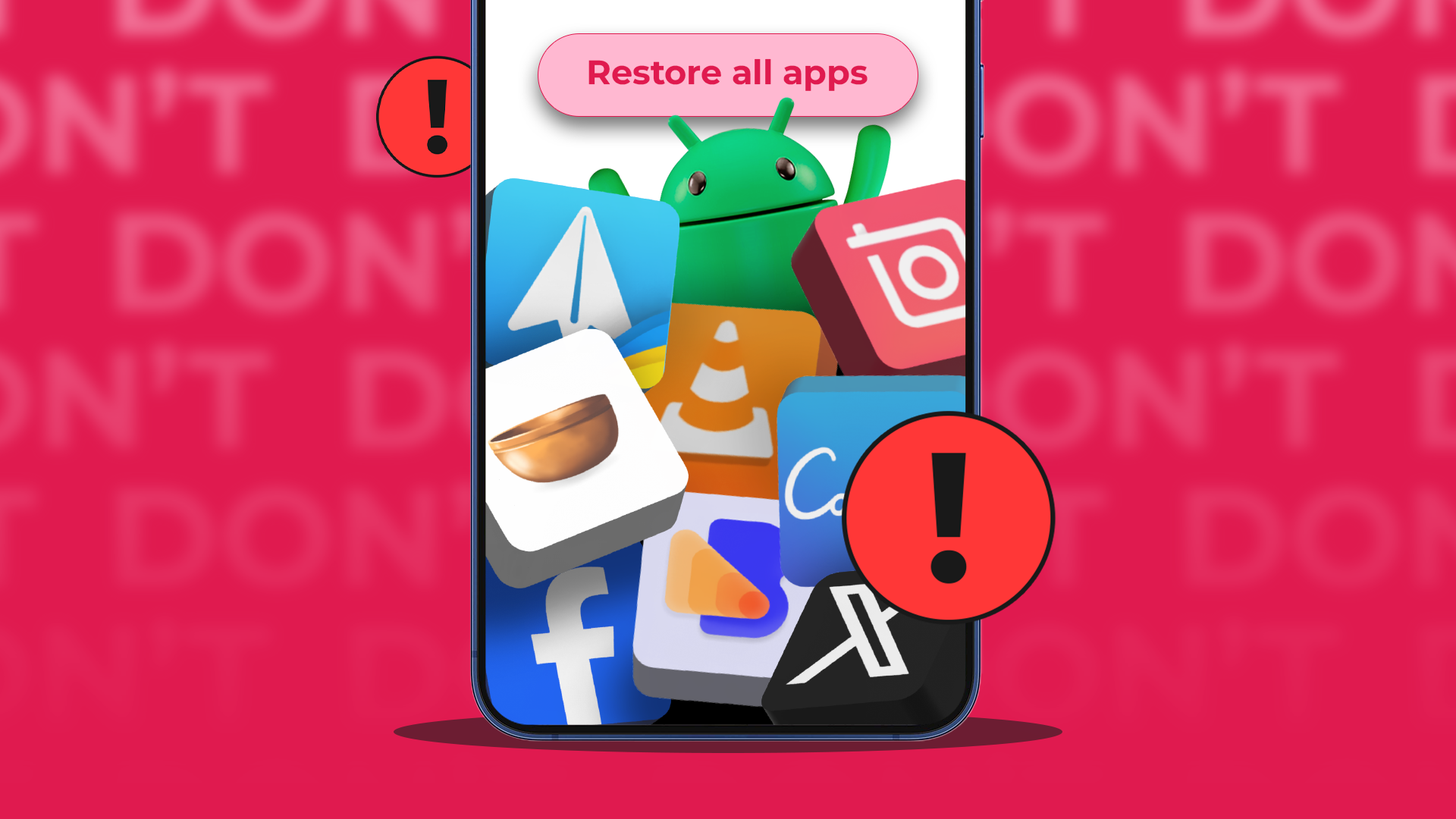
Setting up a new phone? Avoid this mistake Credit: Lucas Gouveia / Android Police By Stephen Radochia Published 24 minutes ago When Mitsubishi made your first cellphone, you know you’ve been…
Sources
- Setting up a new phone? Avoid this mistake
- Setting up new phone with old phone error message solution
- I have a new iPhone SE and we make a mistake setting it …
- How to Make your Smart Phone ADHD Friendly (Part 1)
Related posts
- Tracking every watch I wear in 2026: which watch-tracking app I chose
- Margaret Atwood on doomscrolling, Elon Musk and political resistance
- YouTube Music adds AI-generated backgrounds to lyrics sharing