
TL;DR
An Android Police author dug into Google Messages' lesser-known features and found pinning, swipe gestures, desktop pairing, and message scheduling reduced inbox clutter and stress. Using these tools together helped keep important chats visible and made replying less interruptive.
What happened
The author found everyday texting had become a source of low-level stress as their Google Messages inbox accumulated one-off alerts, OTPs, and threads that pushed important conversations down. To address that, they explored built-in shortcuts and settings that many users overlook. Pinning brought selected conversations to the top so family, close friends, and work chats stayed visible. Pairing the phone with Messages for web allowed sending and receiving texts from a computer after scanning a QR code via Device pairing. Customizable swipe actions let the author archive or delete conversations quickly (archive being the default). Scheduling messages by long-pressing the Send button made it possible to compose texts ahead of time and choose suggested or custom send times. Together, these features reduced the number of small decisions and interruptions associated with managing messages.
Why it matters
- Pinning prevents key conversations from getting buried by transient messages.
- Desktop pairing keeps replies within the user’s workflow, reducing device switching.
- Custom swipe actions let users clear or archive chats quickly without deleting them permanently.
- Scheduling messages removes pressure to reply immediately and avoids poorly timed sends.
Key facts
- Pin a conversation by long-pressing a chat and tapping the pin icon to keep it at the top of the inbox.
- Messages for web is set up via the phone’s profile icon > Device pairing, then scanning the QR at messages.google.com/web.
- After pairing, conversations sync in real time and can be read and replied to from a browser.
- By default, swiping a conversation archives it; swipe actions are customizable in Messages settings > Swipe actions > Customize.
- The author configured swipe left to archive and swipe right to delete to make archiving the easier gesture.
- Archiving keeps messages accessible later and avoids permanent deletion unless you explicitly delete a thread.
- Schedule a message by typing it then long-pressing the Send button to pick a suggested time or set a custom date and time.
- Use cases mentioned for archiving include one-time OTPs, delivery updates, and customer support chats.
What to watch next
- Whether there’s a limit to how many conversations can be pinned: not confirmed in the source.
- Whether Messages for web requires the phone to stay online at all times to sync: not confirmed in the source.
- Whether swipe customization and scheduling behave identically across all Android devices and app versions: not confirmed in the source.
Quick glossary
- Pinning: Keeping a conversation fixed at the top of an inbox so it remains easily accessible.
- Archiving: Removing a conversation from the main inbox without deleting it, so it can be retrieved later.
- Messages for web: A browser-based interface that mirrors SMS/RCS conversations from a paired phone for desktop texting.
- QR code pairing: A quick setup method that uses a QR code scanned by the phone to link it with a web session or device.
Reader FAQ
How do I pin a conversation in Google Messages?
Long-press the chat you want to prioritize, then tap the pin icon.
How do I use Messages on my computer?
Open Google Messages on your phone, tap the profile icon, choose Device pairing, and scan the QR code at messages.google.com/web.
Can I schedule a text to send later?
Yes. Type your message, then long-press the Send button and choose a suggested time or set a custom date and time.
Is archiving reversible?
Yes. Archiving removes a conversation from the inbox but keeps it accessible later; deleting is final.
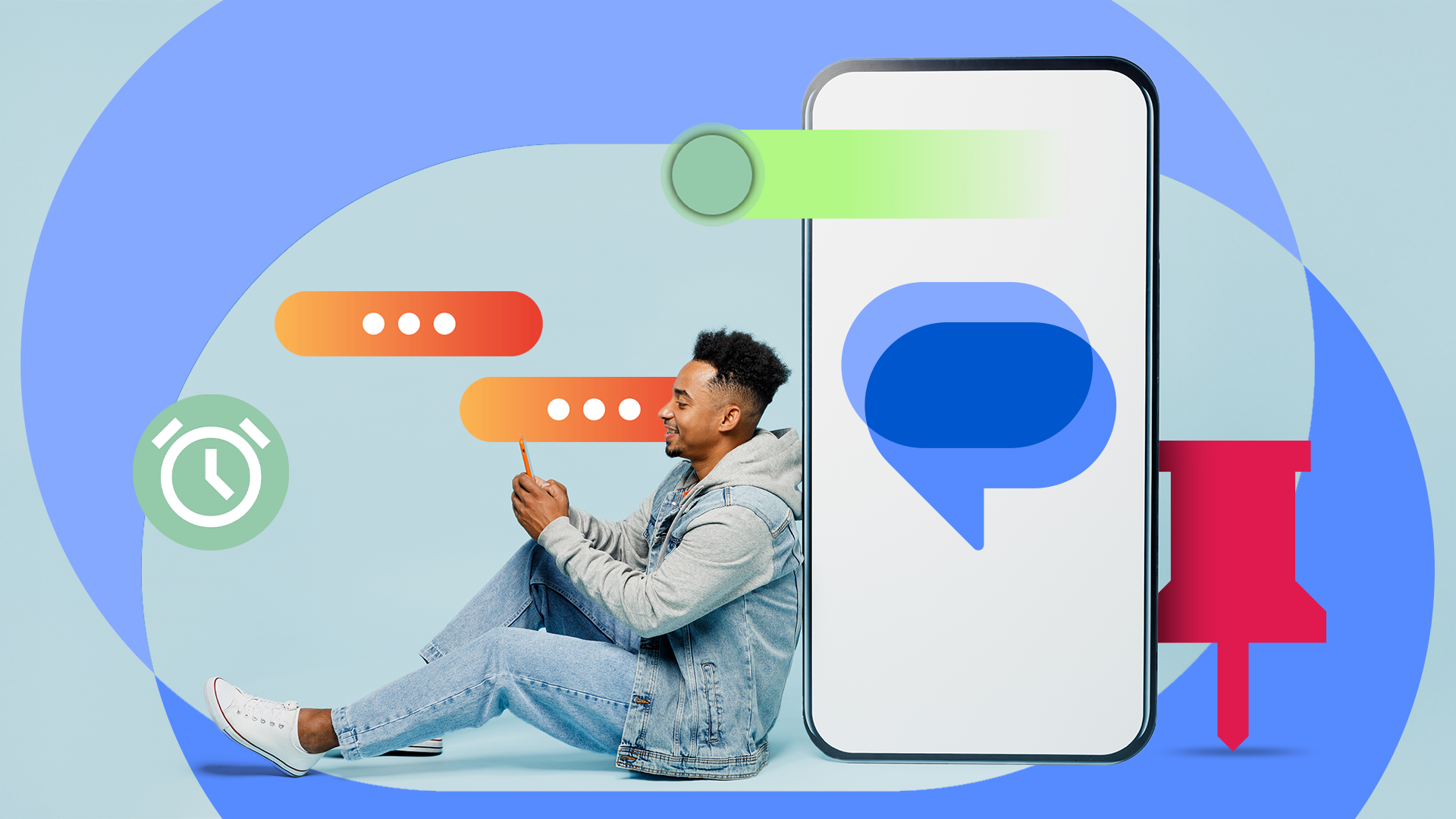
I explored every Google Messages shortcut and hidden setting, and these features made texting less stressful Credit: Lucas Gouveia / Android Police | ViDI Studio / Shutterstock By Anu Joy Published…
Sources
- I explored every Google Messages shortcut and hidden setting, and these features made texting less stressful
- These hidden Google Messages gestures make texting …
- 18 tricks for more efficient Android messaging
Related posts
- Verizon to Issue $20 Account Credit After Widespread Outage — How to Redeem
- Subway Surfers City will launch on iOS and Android on Feb. 26
- OBS Studio 32.1.0 Beta 1 rolls out with new audio mixer and Add Source dialog