
TL;DR
A recent guide outlines step-by-step changes to make iPhone and Android smartphones easier for older or inexperienced users, covering device choice, basic security, accessibility settings, shortcuts, emergency info and tracking. The recommendations were tested on an iPhone 16 and a Pixel 10 Pro XL and updated in December 2025.
What happened
Wired published a how-to for preparing smartphones for elderly relatives or people new to mobile devices. The piece advises using a regular iPhone or Android handset (rather than niche “senior phones”) and suggests repurposing an older device if available. It walks through enabling convenient lock methods such as fingerprint or face unlock or setting a memorable PIN, then simplifying the home screen by removing unneeded apps. The guide explains how to create one-tap contact shortcuts—using Android widgets or the iPhone Shortcuts app—adjust font size and display settings, and pick louder or familiar ringtones. It covers built-in options for simpler Android launchers (including Samsung’s Easy Mode), steps to enable phone-finding tools (Find My on iPhone, Google Maps sharing on Android), configuring Medical ID and Emergency SOS triggers, and basic security advice including a recommendation for Malwarebytes mobile security apps. The author also stresses giving a hands-on tutorial and testing understanding.
Why it matters
- Simplifying interfaces reduces confusion and daily friction for older or inexperienced users.
- Proper security and emergency settings help first responders and caregivers act quickly if needed.
- Higher font sizes and louder alerts improve accessibility for users with vision or hearing challenges.
- Preconfigured shortcuts and sharing options can speed routine tasks and ease communication.
Key facts
- The guide favors standard iPhone or Android handsets over specialist “senior phones.”
- Recommendations were verified on an iPhone 16 and a Pixel 10 Pro XL.
- Enable biometric unlock (face or fingerprint) or set a memorable PIN via Settings > Security on Android or Face ID/Touch ID & Passcode on iPhone.
- Create one-tap contact shortcuts: Android uses Widgets > Contacts > Direct dial; iPhone uses the Shortcuts app or Contacts widget.
- Android users can switch to an easier launcher (Samsung Easy Mode or third-party launchers like Simple Launcher); this is Android-only.
- Increase text size through Settings > Display (Android) or Settings > Display & Brightness / Accessibility (iPhone) to improve readability.
- Set louder, familiar ringtones and enable vibration/haptics in sound settings; iPhone also offers LED flash for alerts under Accessibility.
- Enable device-location tools: Find My on iPhone; Google Maps location sharing on Android for ongoing shared location.
- Add Medical ID and emergency contacts via the Health app on iPhone or Safety & emergency settings on Android; configure Emergency SOS triggers on both platforms.
- The article suggests Malwarebytes Security apps for mobile malware and scam protection on both platforms.
What to watch next
- Whether the user accepts ongoing location sharing and where they are comfortable drawing privacy lines (permission is emphasized in the guide).
- How well a simplified launcher or home-screen setup holds up for daily use versus reverting to the stock experience.
- not confirmed in the source
Quick glossary
- Launcher: On Android, the launcher controls the home screen layout, app icons and general look of the interface; alternative launchers can simplify the display.
- Find My / Find Hub: Built-in services for locating a lost device or sharing a phone’s location with trusted contacts.
- Medical ID: A phone feature that stores critical health information and emergency contacts so responders can access it from the lock screen.
- Shortcuts (iPhone): An app that automates tasks and can create home-screen actions, such as one-tap calls to specific contacts.
- Two-factor authentication (2FA): An extra security step that requires two types of verification before granting account access, often a password plus a code.
Reader FAQ
Do I need to put a passcode on the phone?
Yes. The guide recommends using biometric unlock (face or fingerprint) if possible, or a memorable PIN or pattern as an alternative.
Can I reuse an older phone for a parent or grandparent?
Yes. The article suggests repurposing an older iPhone or Android phone instead of buying a specialist senior handset.
Should I install antivirus or security software?
The author recommends Malwarebytes Security for Android and Malwarebytes Mobile Security for iPhone as options to guard against scams and malware.
Can I track their phone without asking them?
Not without consent. The guide says to get permission before sharing location and explains how to enable location sharing on each platform.
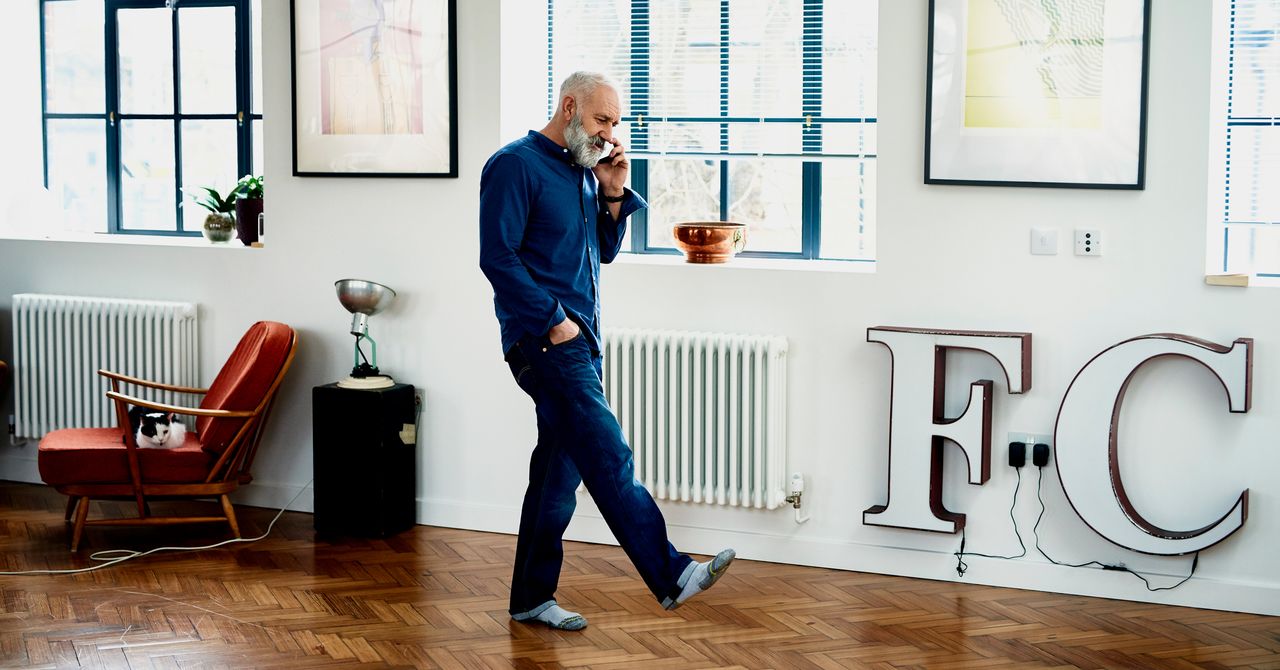
SIMON HILL GEAR DEC 25, 2025 7:30 AM How to Set Up a Smartphone for Loved Ones Who Don’t Get Tech Here's how to make iPhone and Android devices a…
Sources
- How to Set Up a Smartphone for Elderly Loved Ones
- iPhone Easy Mode Tips for Grandparents
- One Tech Tip: Spend quality time with loved ones, not a …
- How to Set Up a Senior-Friendly Smartphone
Related posts
- I won’t set up a new Android phone without installing Pixel Search first
- Using Google Maps features to make daily commutes less stressful
- Handheld PC Community Forums: Latest Activity, Support Boards & Stats