
TL;DR
iPadOS 26 introduces optional Mac-like windowing and deeper customization across Files, Control Center, home and lock screens. Before installing lots of apps, adjust multitasking, organize Files, customize Control Center and screens, and tidy notifications for a smoother first day.
What happened
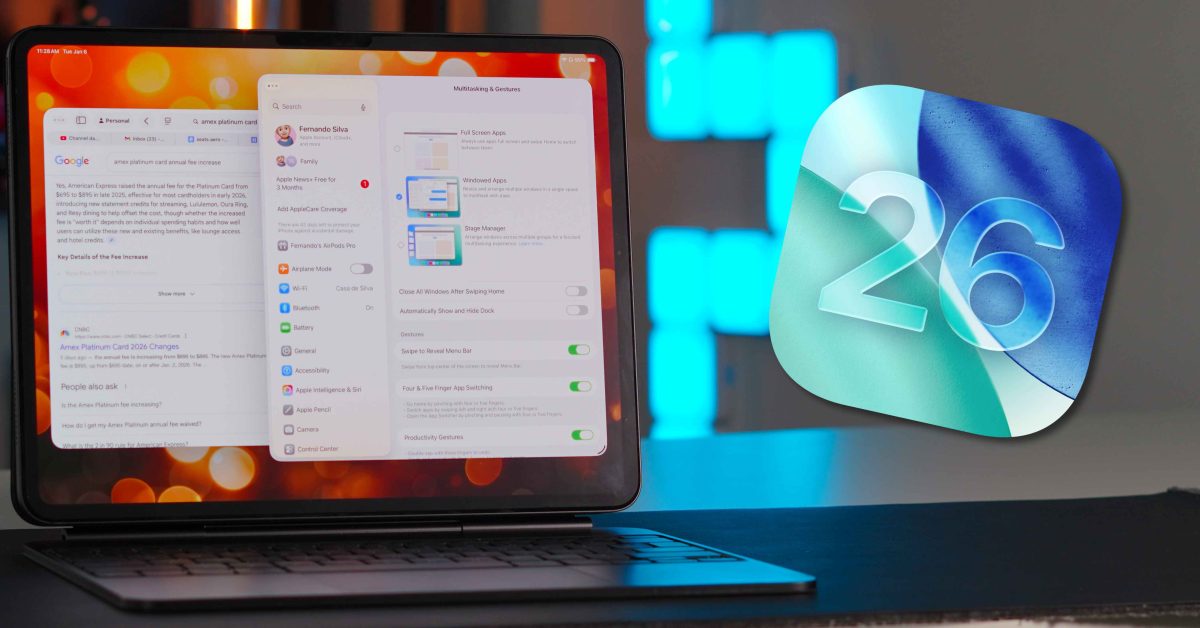
Apple’s iPadOS 26 includes several interface and workflow changes that affect how new iPads should be set up. The update adds an optional desktop-style windowing and multitasking mode that users can enable or leave off in Settings > Multitasking & Gestures; the system still supports the traditional full-screen app behavior. The Files app has been expanded with Finder-like features: adjustable column sizes, additional column categories, folder color and emoji labels, easier layout changes, background file transfers, and the ability to place folders in the Dock. Control Center gained broader customization and pagination for multiple pages of controls. Users can also personalize home and lock screens with widgets, icon sizing, wallpaper and clock font changes. The guide emphasizes using Scheduled Summary and per-app notification settings to avoid overload and recommends these initial tweaks to make a new iPad feel faster, cleaner and more purposeful out of the box.
Why it matters
- Optional windowing gives users a choice between a computer-like workflow or the traditional tablet experience.
- Files app upgrades make file management on iPad more powerful and closer to desktop-class workflows.
- Control Center and screen customizations let users surface the tools they use most, reducing friction.
- Notification scheduling can reduce distractions and help users prioritize time-sensitive alerts.
Key facts
- iPadOS 26 introduces a new windowed apps option alongside the existing full-screen app mode.
- Enable multitasking choices via Settings > Multitasking & Gestures.
- Files app updates include adjustable column sizes, extra column categories, folder colors and emoji labels, and background transfer improvements.
- You can place folders (such as iCloud Desktop) in the Dock for quicker access.
- Control Center is now more customizable and supports pagination for multiple control pages.
- Home Screen and Lock Screen can be edited by long-pressing to add widgets, change icon size/color, wallpaper, and lock-screen clock font.
- Notification management: use Settings > Notifications and turn on Scheduled Summary to batch non-urgent alerts and set delivery times.
- The article recommends doing these setup steps before downloading many apps to keep the iPad feeling faster and more intentional.
What to watch next
- Whether users broadly adopt the new desktop-like windowing model or stick with full-screen apps — not confirmed in the source
- Performance differences of iPadOS 26 windowing on older iPad models and battery impact — not confirmed in the source
- How quickly third-party apps add support or optimizations for the new windowing and Files features — not confirmed in the source
Quick glossary
- iPadOS: Apple’s operating system designed for iPad, which governs apps, multitasking, and system features.
- Multitasking / Windowed Apps: A mode that lets users open and manage multiple app windows simultaneously, similar to desktop windowing.
- Files app: Apple’s built-in file manager for iPad that provides access to local and cloud storage and file organization tools.
- Control Center: A quick-access panel for commonly used system controls and utilities, reachable by swiping from the top-right corner.
- Scheduled Summary: A notification feature that bundles non-urgent alerts and delivers them at set times to reduce interruptions.
Reader FAQ
Do I have to use the new windowed multitasking in iPadOS 26?
No. The windowing option is optional; you can keep the traditional full-screen app behavior via Settings > Multitasking & Gestures.
Can I put folders in the Dock on iPadOS 26?
Yes. The updated Files app allows you to place folders, including iCloud Desktop folders, in the Dock for easier access.
How do I reduce notification overload on a new iPad?
Turn on Scheduled Summary in Settings > Notifications to batch non-urgent alerts and review per-app notification settings.
Will older iPad models run these iPadOS 26 features the same way?
not confirmed in the source
iOS 26 gave Apple Music three of my favorite new features in years Ryan Christoffel Jan 6 2026 IPAD IPADOS IPADOS 26 Just get a new iPad? Here’s what to…
Sources
- Just get a new iPad? Here’s what to do first [Video]
- How to fix frozen iPad after iPadOS 26 update during Apple Pay setup?
- How to Prepare Your iPhone or iPad for iOS 26
- Turn on and set up iPad
Related posts
- Apple Research app adopts iOS 26’s Liquid Glass visual redesign
- Apple’s Five All-New Product Lines Rumored for 2026 — What to Expect
- Apple will temporarily close its Regent Street flagship London store next week