
TL;DR
iOS 26 introduced a new Liquid Glass design and subsequent 26.1 and 26.2 updates added more customization options. You can pick between Clear and Tinted system styles in Settings, and adjust the Lock Screen clock’s Glass appearance, transparency, and size.
What happened
Apple’s iOS 26, released in the fall, brought a refreshed Liquid Glass visual style to the iPhone. Updates 26.1 and 26.2 expanded the customization tools available for that design. Users can now choose between two primary Liquid Glass looks — Clear and Tinted — from Settings ⇾ Display & Brightness ⇾ Liquid Glass. Clear favors more transparent interface elements, while Tinted increases opacity and contrast. Separately, iOS 26 adds Liquid Glass options to the Lock Screen clock: long-press your wallpaper, tap Customize, select the clock, and choose the Glass design. When Glass is active a slider controls the clock’s transparency; there’s also a drag handle on the clock’s lower-right corner to enlarge its display. The changes aim to give users direct control over how the new visual language appears across common iPhone surfaces.
Why it matters
- Gives users direct control over the look and contrast of iOS UI elements through Clear and Tinted modes.
- Lock Screen clock customization lets users match the Liquid Glass effect to wallpapers and personal legibility preferences.
- Incremental updates (26.1 and 26.2) show Apple is continuing to refine iOS 26’s visual features after the initial release.
- Simple controls (a slider and a dragger) make adjusting transparency and size quick without digging into advanced settings.
Key facts
- iOS 26 launched in the fall; additional customization tools arrived in updates 26.1 and 26.2.
- Liquid Glass has two main styles: Clear and Tinted.
- To change the system Liquid Glass style go to Settings ⇾ Display & Brightness ⇾ Liquid Glass.
- The Clear option uses more transparent UI elements; Tinted increases opacity and contrast.
- Lock Screen clock customization: long-press the wallpaper, tap Customize, then tap the clock and choose Glass.
- When Glass is selected for the clock a slider appears to adjust transparency/opacity.
- You can enlarge the default clock by dragging the handle in the bottom-right corner of the clock to expand its size.
- 9to5Mac notes that a new wave of users is upgrading to iOS 26 for the first time, prompting renewed interest in these options.
What to watch next
- User feedback from people newly upgrading to iOS 26 will indicate which Liquid Glass style becomes preferred.
- Whether Apple will add more Liquid Glass options or refinements in future iOS updates is not confirmed in the source.
- Whether developers will be able to opt apps into different Liquid Glass treatments or per-app toggles is not confirmed in the source.
Quick glossary
- Liquid Glass: A visual design language in iOS 26 that uses semi-translucent UI elements and blurred backgrounds to create layered depth.
- Transparency / Opacity: A property that controls how much of a background shows through a UI element; higher opacity means less see-through.
- Lock Screen: The iPhone screen shown when the device is locked, which displays items like the clock, notifications, and widgets.
- Slider: A user interface control that lets you adjust a continuous value, such as transparency, by dragging a handle.
Reader FAQ
How do I switch between Clear and Tinted Liquid Glass?
Open Settings ⇾ Display & Brightness ⇾ Liquid Glass and select either Clear or Tinted.
How do I change the Lock Screen clock to use Liquid Glass?
Long-press your wallpaper, tap Customize, select the clock, then pick the Glass option.
Can I adjust the clock’s transparency and size?
Yes. When Glass is selected a slider adjusts transparency, and a dragger in the clock’s bottom-right corner enlarges the clock.
Will Liquid Glass affect battery life or app performance?
not confirmed in the source
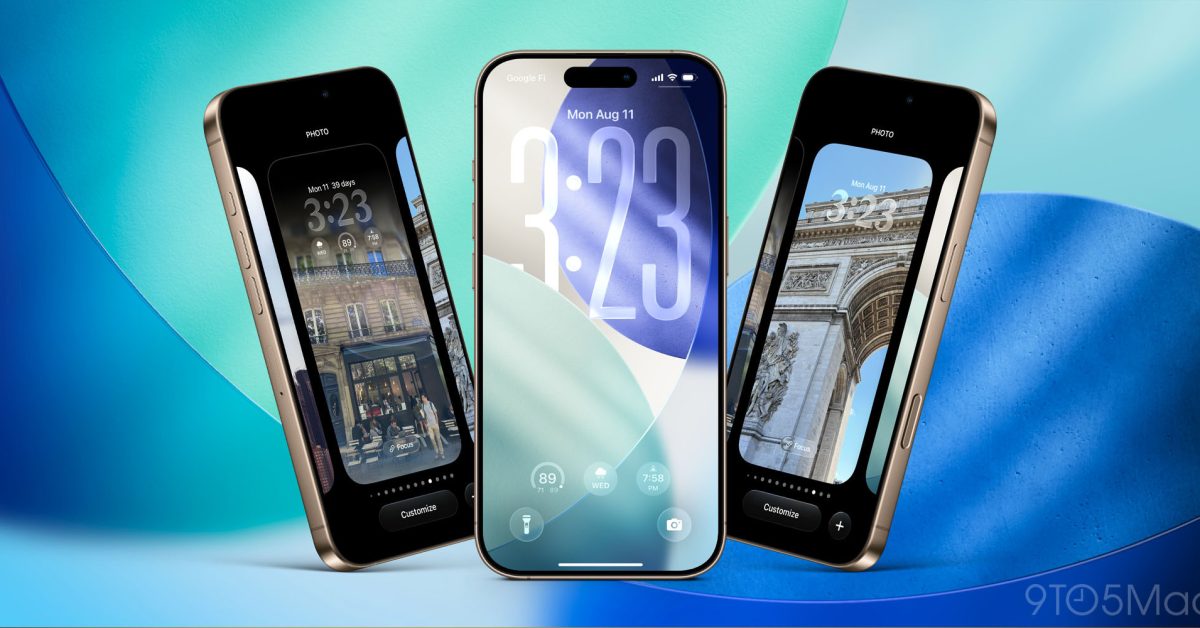
iOS 26 lets you customize Liquid Glass on your iPhone, here’s how Ryan Christoffel Dec 23 2025 IOS 26 LIQUID GLASS iOS 26 lets you customize Liquid Glass on your…
Sources
- iOS 26 lets you customize Liquid Glass on your iPhone, here’s how
- How to change the Liquid Glass style from…
- I customized my iPhone lock screen using iOS 26.2's new …
- Not Loving Liquid Glass? Change These Settings on Your …
Related posts
- 24GB M4 MacBook Air $300 off, Apple Pencil Pro deals and holiday sales
- Apple TV’s top 10 upcoming shows premiering in early 2026 — dates
- Apple Pay launches limited-time 20% discount for Adidas online orders