
TL;DR
Samsung's built-in keyboard in One UI 8 has improved and now hosts AI features like real-time translation and generative writing. To get the best experience you should disable some defaults, tweak responsiveness and visibility settings, and use Good Lock's Keys Cafe to rebuild the layout.
What happened
One UI 8's native keyboard has been upgraded into a core input for Samsung's ambient ecosystem, handling features such as real‑time translation, tone rewriting and generative AI. Despite those capabilities, the default configuration shipped with devices is described as cluttered and sometimes counterproductive: aggressive auto‑replace can lead to overcorrections and lag, common keys are small or poorly placed, and some convenience features are not immediately accessible. The recommended approach is to pare back the factory setup and reconfigure the keyboard through Samsung's settings and the Good Lock Keys Cafe module. Practical steps include saving screenshots directly to the clipboard, disabling Auto replace while keeping Predictive Text, enabling a High contrast keyboard with a dark theme for outdoor visibility, pinning the Writing Assist AI to the toolbar, and speeding up touch responsiveness and backspace behavior. Keys Cafe lets users resize keys, create a custom symbol page, and set text shortcuts that sync via Samsung Cloud, which the guide says can be done in roughly 15 minutes.
Why it matters
- Customizing these settings can reduce typing errors and perceived lag caused by aggressive autocorrect.
- Keeping AI writing tools pinned makes Samsung's built‑in Writing Assist features more accessible during composition.
- High contrast and theme changes improve legibility outdoors, which matters on OLED devices.
- Good Lock's Keys Cafe enables deep layout and symbol customization that can speed daily typing and preserve shortcuts across devices via Samsung Cloud.
Key facts
- One UI 8's keyboard supports real‑time translation, tone rewriting and generative AI as part of Writing Assist.
- To save screenshots to the clipboard: open keyboard settings (via the gear icon) and enable 'Save screenshots to clipboard'.
- Turn off 'Auto replace' to stop aggressive autocorrect while keeping the suggestion bar by leaving 'Predictive Text' enabled.
- Enable 'High contrast keyboard' in Style and layout to improve key/background separation; pairing it with a dark theme enhances visibility on OLED screens.
- Pin Writing Assist to the toolbar by tapping the three‑dot menu on the keyboard and dragging the Writing Assist (three stars) icon onto the main bar.
- Increase responsiveness by changing backspace from 'Normal' to 'Fast' and reducing Touch and Hold Delay from 0.3s to 0.2s (Short).
- Keys Cafe (in the Good Lock suite) provides a 'Make your own keyboard' tool for structural changes, including enlarging the period key (example: +20%).
- Keys Cafe also lets you build a custom symbol page and set text shortcuts that synchronize with Samsung Cloud.
- Author estimate: rebuilding and fine‑tuning the keyboard with these tools can take about 15 minutes.
What to watch next
- Whether Samsung will change the factory default keyboard settings in future One UI updates — not confirmed in the source
- How widely Good Lock and Keys Cafe customizations are adopted by average users and whether Samsung promotes them more broadly — not confirmed in the source
- Potential privacy or data‑handling details related to the keyboard's AI features and cloud‑synced shortcuts — not confirmed in the source
Quick glossary
- Predictive Text: A keyboard feature that suggests words or completions as you type based on context and past usage.
- Auto replace: An automatic correction feature that replaces typed text with what the keyboard believes is the correct word or phrase.
- Keys Cafe (Good Lock): A customization module in Samsung's Good Lock suite that lets users design and modify keyboard layouts, keys and symbols.
- Clipboard: A temporary storage area where copied text, images or screenshots are kept for pasting elsewhere.
- Writing Assist: Samsung's suite of AI-powered composition tools integrated into the keyboard, offering features like tone adjustment and generative suggestions.
Reader FAQ
How do I stop Samsung Keyboard from auto‑correcting everything?
Open the keyboard settings via the gear icon and toggle off 'Auto replace' while leaving 'Predictive Text' on if you want suggestions without forced replacements.
Can I make keys larger or change the layout?
Yes. Use Keys Cafe in Good Lock and the 'Make your own keyboard' option to adjust key sizes and layout; the article mentions making the period key about 20% bigger as an example.
Will my shortcuts move to a new Samsung phone?
Text shortcuts can sync with Samsung Cloud so they can follow you to another Samsung Galaxy device.
How long does it take to rebuild the keyboard with these tweaks?
The guide estimates you can get a pro‑level keyboard within about 15 minutes.
Is there any information on future keyboard updates or changes from Samsung?
not confirmed in the source
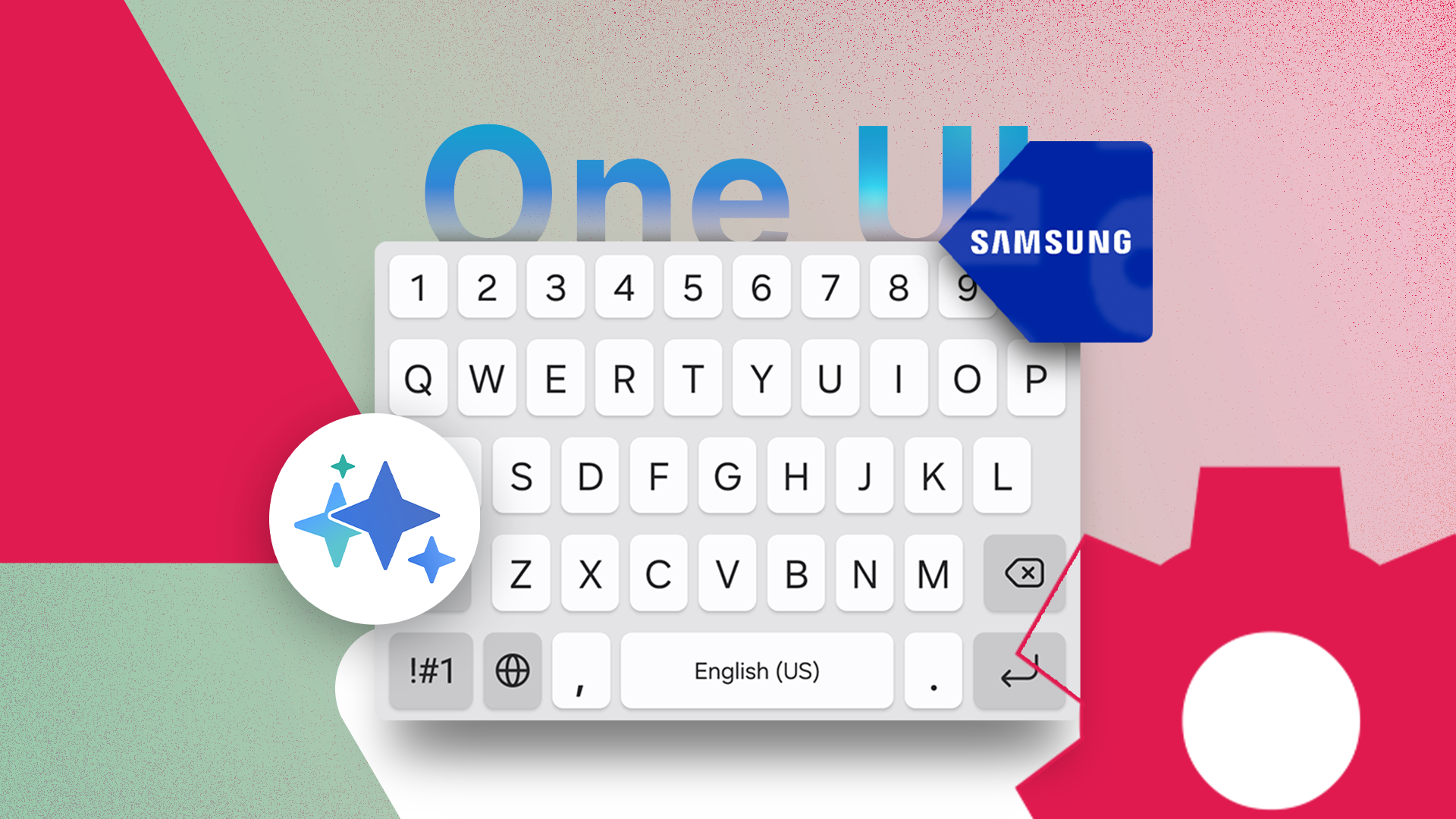
Samsung's keyboard is finally good in One UI 8, but you'll need to change these settings Credit: Lucas Gouveia / Android Police By Ben Khalesi Published 11 minutes ago Ben Khalesi…
Sources
- Samsung's keyboard is finally good in One UI 8, but you'll need to change these settings
- Adjust keyboard settings on your Galaxy phone or tablet
- These 6 One UI 8 settings are the first thing I change on …
- Feedback on the crazy annoying things with UI 8!
Related posts
- How to Manage Files on iOS and Android: Accessing Your Phone’s Storage
- Top Fitness and Workout Apps for 2026 — WIRED’s Tested Picks & Costs
- Late-night Pentagon-area pizzeria ‘Pizzato Pizza’ reports sudden traffic surge