
TL;DR
iOS 26 introduced several new Settings options that let users tweak the Always On Display, camera access from the Lock Screen, battery behavior and AirPods sleep handling. The author turned off wallpaper blur, disabled the Lock Screen camera swipe, enabled Adaptive Power, and switched on AirPods sleep-based media pausing.
What happened
After installing iOS 26 (and the subsequent 26.1 update), the reporter walked through a handful of fresh Settings options and adjusted defaults to match personal preferences. iOS 26 now blurs wallpaper photos on the Always On Display by default; that blur can be disabled in Settings → Display & Brightness → Always On Display. The Lock Screen camera swipe — a long-standing gesture for quick camera access — can be turned off in iOS 26.1 at Settings → Camera (toggle labeled “Lock Screen Swipe to Open Camera”). Apple added Adaptive Power for devices compatible with Apple Intelligence; the author enabled it at Settings → Battery → Power Mode → Adaptive Power, noting it activates only when battery usage is unusually high and can send notifications when it does. Finally, a new AirPods option, “Pause Media When Falling Asleep,” was enabled to automatically pause audio for supported AirPods models when inactivity suggests the listener has dozed off.
Why it matters
- Restoring the uncropped Lock Screen photo look or removing the new blur lets users keep a preferred visual style.
- Disabling the camera swipe reduces accidental launches for people who rely on other camera shortcuts.
- Adaptive Power can extend battery life selectively without the harsher trade-offs of traditional Low Power Mode.
- Automatic pause on AirPods aims to save listeners from losing their place in audiobooks or podcasts when they nod off.
Key facts
- iOS 26 blurs the Lock Screen wallpaper photo in Always On Display by default.
- To disable that blur: Settings → Display & Brightness → Always On Display → Blur Wallpaper Photo toggle.
- iOS 26.1 adds a toggle to stop opening Camera by swiping left on the Lock Screen (Settings → Camera → Lock Screen Swipe to Open Camera).
- Adaptive Power is available under Settings → Battery → Power Mode → Adaptive Power for Apple Intelligence–compatible devices.
- Apple describes Adaptive Power as activating when battery usage is higher than usual and making modest performance adjustments.
- Adaptive Power can lower display brightness, allow some activities to take longer, or turn on Low Power Mode at 20%, per the Settings description.
- A new AirPods setting, “Pause Media When Falling Asleep,” pauses playback on inactivity to help users who listen while winding down.
- Pause Media When Falling Asleep is available on AirPods Pro 3, AirPods Pro 2, and AirPods 4.
- Turning off the Always On Display wallpaper blur restores the prior behavior seen in iOS 18, according to the reporter’s testing.
What to watch next
- Whether Apple will change the Always On Display blur default in a future update — not confirmed in the source.
- How broadly Adaptive Power will activate across different usage patterns and device models over time — not confirmed in the source.
- If Apple will extend the AirPods sleep-detection pause feature to older or additional headphone models — not confirmed in the source.
Quick glossary
- Always On Display: A screen mode that keeps certain elements visible while the device is locked, typically with reduced brightness to save power.
- Adaptive Power: A battery management option that makes temporary, modest performance and behavior changes when unusually high battery use is detected.
- Low Power Mode: An iPhone setting that reduces background activity and performance to extend battery life until the device is charged.
- Lock Screen swipe: A gesture from the Lock Screen that opens an app—historically used to launch the Camera by swiping left.
- Pause Media When Falling Asleep: An AirPods setting that pauses audio playback when the headphones detect inactivity consistent with falling asleep.
Reader FAQ
How do I turn off the Always On Display wallpaper blur?
Open Settings → Display & Brightness → Always On Display and disable the ‘Blur Wallpaper Photo’ toggle.
Can I stop the Camera from opening when I swipe left on the Lock Screen?
Yes. In iOS 26.1, go to Settings → Camera and turn off ‘Lock Screen Swipe to Open Camera.’
Which AirPods support the sleep-based pause feature?
The feature is available on AirPods Pro 3, AirPods Pro 2, and AirPods 4.
Will Adaptive Power always be active once enabled?
No. The feature only activates when it detects unusually high battery usage on a given day, per Apple’s Settings description.
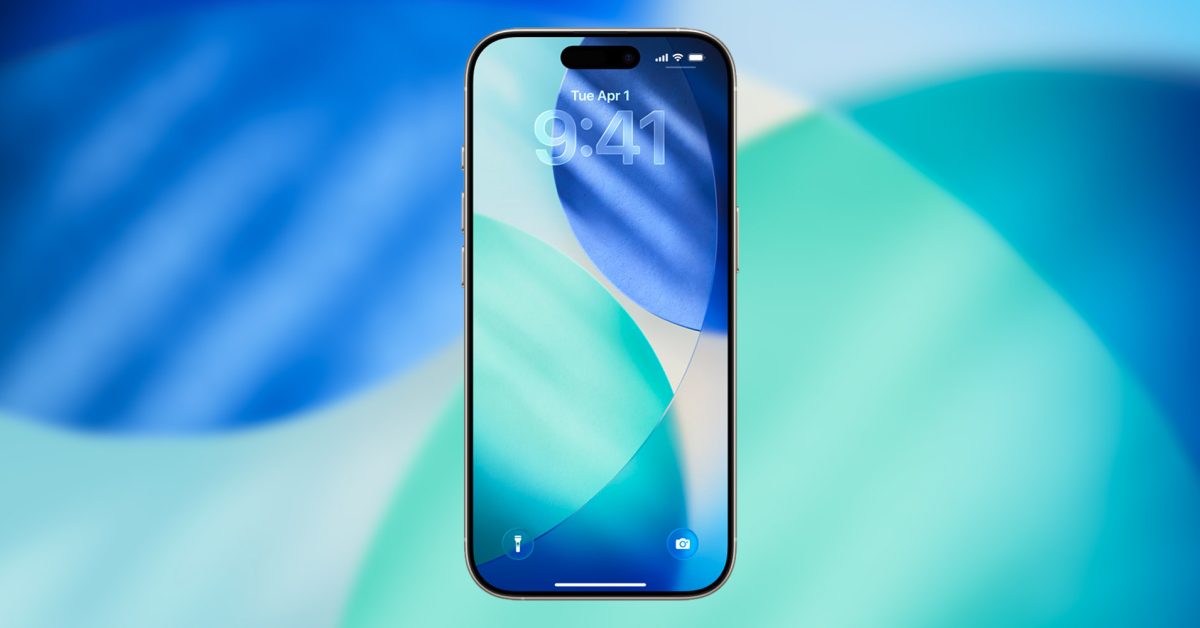
iOS 26 gave Apple Music three of my favorite new features in years Ryan Christoffel Jan 6 2026 IOS 26 SETTINGS Here’s every iOS 26 setting I changed on my…
Sources
- Here’s every iOS 26 setting I changed on my iPhone right away
- iPhone settings changing automatically after iOS 26 update
- These iOS 26 Tweaks Instantly Made My iPhone Better …
- Not Ready for iOS 26? 10 iOS 18 Tweaks You Can Make …
Related posts
- Apple TV comedy The Studio earns most acting nominations at Actor Awards
- Report: JPMorgan Chase set to replace Goldman Sachs as Apple Card partner
- 9to5Mac Daily Jan 7, 2026 — iPadOS Wi‑Fi, laptop design trends, iPhone camera rumors